
Barcode and QR tagging
Barcode and QR asset tags, numbered and printed from your register
Design the label, number the tags, print them in batches and fix them to assets. Every tag is tied to a record, so a scan opens the asset and a reprint leaves a trail.
The problem
Tags get printed in one place, numbered in another, and typed into a spreadsheet later. A duplicate number, a faded label and a reprint nobody recorded are enough to make a physical audit fall apart.
How it works in VexCloud AMS
01
Design the label
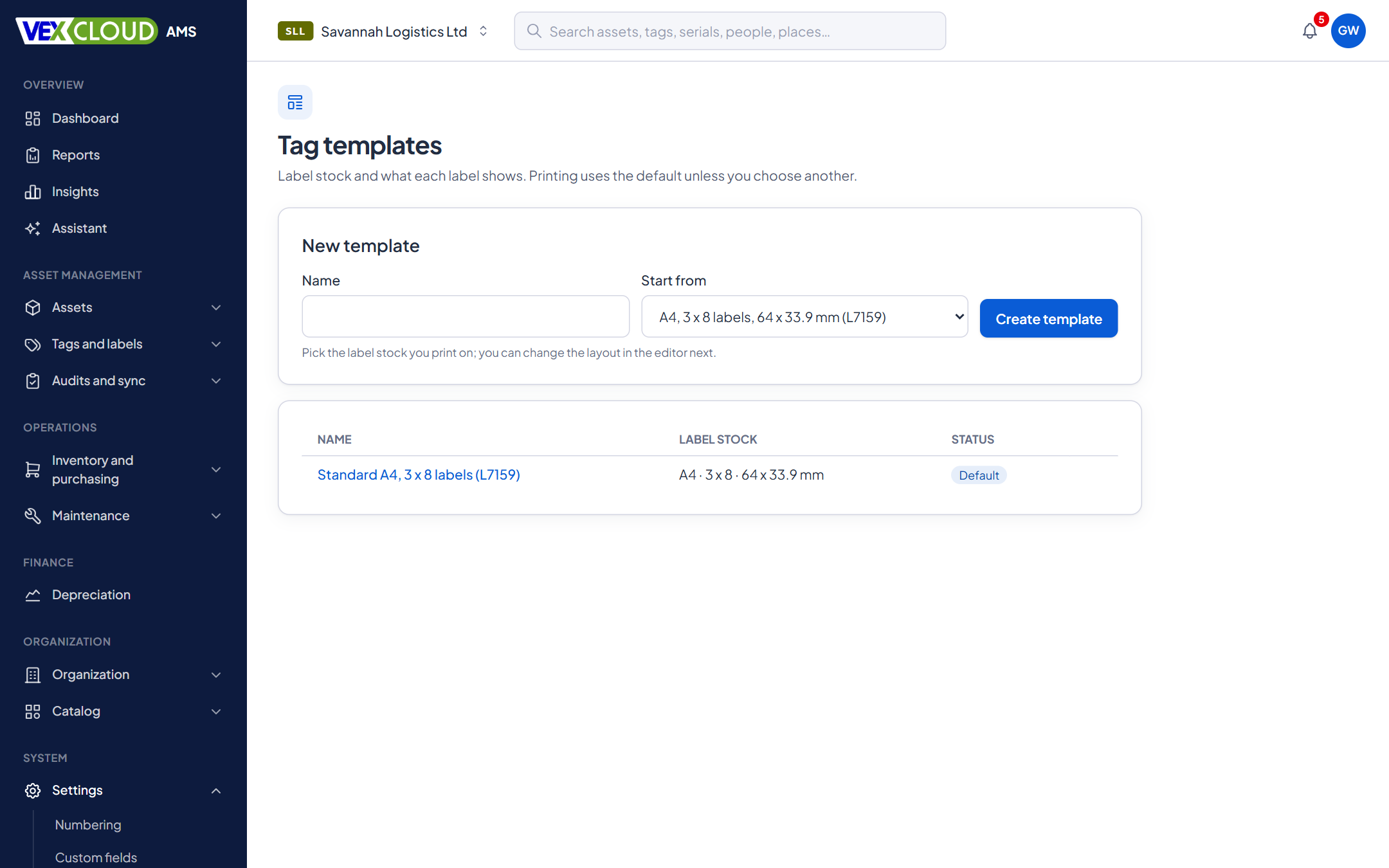
Start from a standard sheet or roll preset, then lay out the label in a visual editor with a live preview. Each label can carry text, a QR code, a barcode (Code 128, Code 39 or Data Matrix), lines, boxes and your company logo.
Fill text and barcodes from the record with placeholders such as the asset number, name, serial number, model, category and company. Presets include A4 sheets of 3 × 8, 2 × 7 and 3 × 7 labels, US Letter 3 × 10, and 50 × 25 mm and 57 × 32 mm rolls.
The editor checks your layout as you work, so a QR code too small to scan, or a barcode too narrow to read, cannot be saved.
02
Number tags your way
Build the numbering pattern from your company code, category, year and a padded sequence, for example ABC/FA/000001. Reserve a block such as ABC/FA/000001 to ABC/FA/001000 for a batch, and VexCloud AMS guarantees none of those numbers is used twice.
Choose whether the tag carries the asset's own number, the simplest setup, or a separate tag code with its own sequence.
03
Print in batches
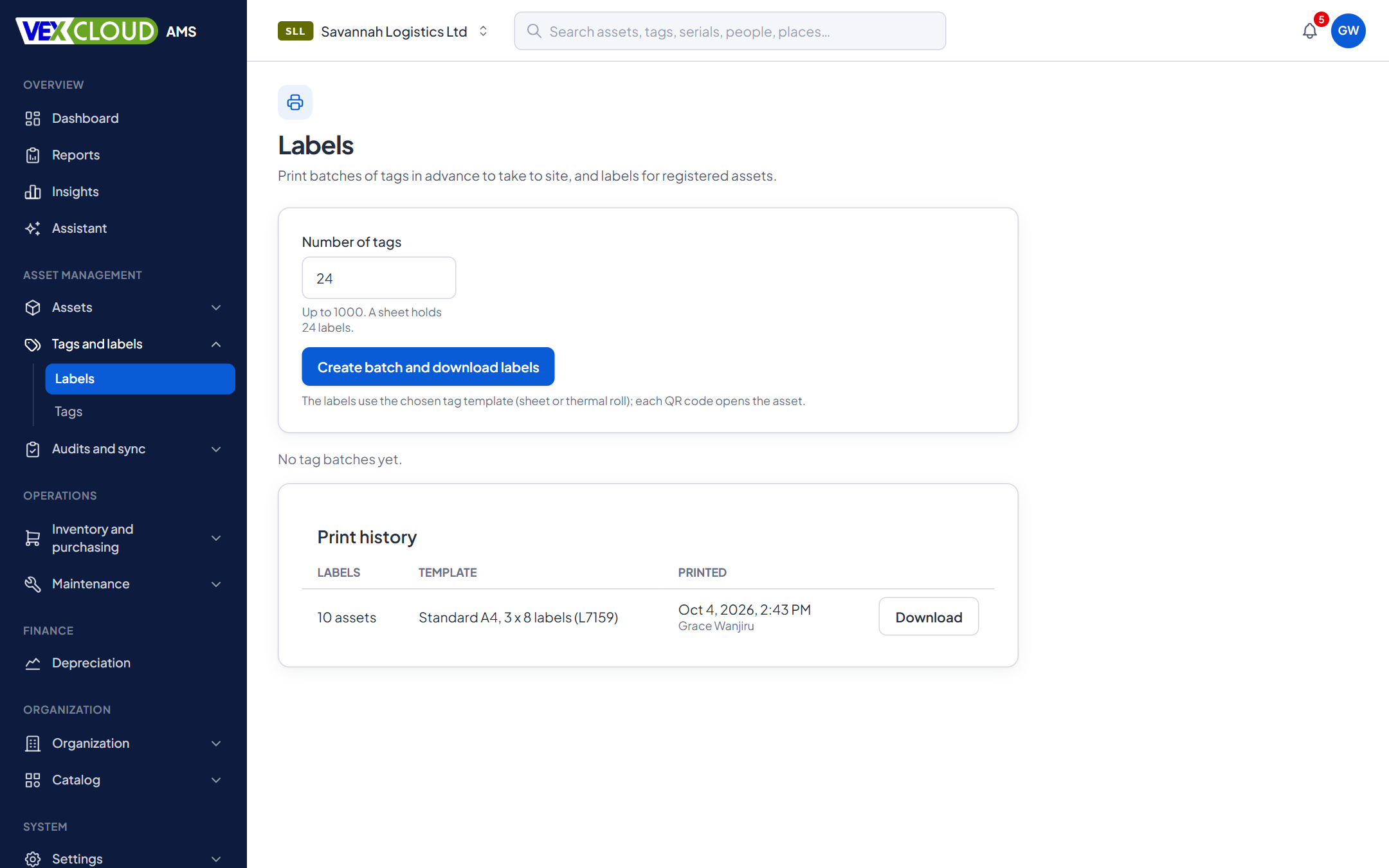
Create a batch of up to 1,000 tags in advance and take the sheets to site. Or print labels for assets that are already registered, either chosen one by one or from a filtered list of up to 500 assets at a time.
- PDF sheets print on any printer.
- ZPL files drive Zebra-compatible thermal roll printers.
- The print history shows who printed what, with which template, and lets you download it again.
04
Attach, scan, find
Scan a spare tag while registering an asset, or attach a tag to an asset that already exists. From then on, scanning the tag finds the asset. The QR code on a label holds a link that opens the asset for anyone signed in to the right company.
The scan box reads asset numbers, tag codes, serial numbers and location labels, with a camera, a handheld scanner or the keyboard. Scan a tag that has no asset yet and VexCloud AMS offers to register one.
05
Reprints and replacements on record
Each tag keeps a history: printed, reprinted, attached, replaced, voided, lost. Reprinting a tag that was printed before asks for a reason (damaged, faded, misprint, extra copy), and replacing one asks why. Unused tags can be voided, and a lost tag is detached while its code still resolves to the asset it was on.
Choosing the tag
Printed labels or aluminium tags?
Both scan into VexCloud AMS the same way. The difference is how long they last, and where.
Printed labels
Paper or polyester labels from your own printer suit indoor IT and office items, and anything you will retag within a few years.
Anodized aluminium tags
From Vexar Solutions: for furniture, machinery, vehicles, outdoor and high-traffic assets, where a paper label would not survive.
Aluminium tags compared (opens in a new tab)Asset tag prices (opens in a new tab)
Details
- Label stock
- A4 and Letter sheets, thermal rolls; presets or your own size
- Elements
- Text, QR, Code 128, Code 39, Data Matrix, line, box, logo
- QR error correction
- M, Q or H
- Placeholders
- Tag or asset number, name, serial, model, category, company name and code
- Output
- PDF for any printer, ZPL for Zebra-compatible printers
- Batch size
- Up to 1,000 tags per batch; up to 500 labels from a list
- Numbering
- Pattern with company, category, location, department, year and sequence; tag codes use company, year and sequence; reserved ranges
- Tag states
- Available, attached, replaced, void, lost
- Reprints
- Counted per tag, with a recorded reason
- Layout checks
- Minimum QR and barcode sizes enforced at save
Related features
- Fixed asset registerNumbers, serials, locations, custodians, values, photos and documents, with history.
- Physical asset auditsScan what is really there and reconcile it against the register while you count.
- Android app, offlineScan, capture and count audits where there is no signal. Syncs when you reconnect.
Manufacturing and logistics: machinery, vehicles and generators tagged with durable aluminium.
Not sure which tag to buy? Vexar's asset tags buyer's guide compares the options.
FAQ
Questions on barcode and qr tagging
Do I have to use tags printed by VexCloud AMS?
No. Existing tags work if they carry a barcode or QR code the scanner can read, or a number someone can type. You keep your numbers. Anything that can be scanned can also be typed.
Which printers does it support?
Any printer, through PDF label sheets. For Zebra-compatible thermal roll printers, VexCloud AMS also produces ZPL files from a roll template.
Can I put my company logo on the labels?
Yes. Upload the logo once in your company settings and add a logo element to the template. The editor shows where it sits.
What happens when a tag is damaged or lost?
Reprint it with a reason such as damaged or faded, or attach a replacement tag. The asset keeps its history, and the old code still finds the asset when scanned.
Where do I get durable aluminium tags?
From our parent company, Vexar Solutions, which makes anodized aluminium barcode and QR tags in Nairobi and can tag your assets on site.
See your own assets in VexCloud AMS.
Book a 30-minute demo.